Long-Term Memory Engine (LTM-2.7) | PiecesOS Docs
Learn how to enable, pause, disable, and configure the Long-Term Memory (LTM-2.7) Engine from the PiecesOS Quick Menu, including Audio and Access Control.
What is the LTM-2.7 Engine?
The Long-Term Memory (LTM-2.7) Engine is PiecesOS's core memory system. It runs entirely on your device and continuously captures workflow context—code you copy, screens you view, audio you hear—so Pieces can power Timeline, Conversational Search, and MCP integrations with real context from your day.
All captured data is processed and stored locally. Nothing leaves your machine unless you explicitly choose to share it. See Privacy & On-Device Storage.
The primary control point for LTM is the PiecesOS Quick Menu—the Pieces icon in your menu bar (macOS, Linux) or system tray (Windows).
Agentic Long-Term Memory
Agentic LTM powers a new generation of Conversational Search (Agentic Chats) and Single-Click Summaries (Agentic Summaries). Instead of answering questions in one shot, the agent now reasons across your artificial memory in multiple turns: following threads, cross-referencing context, and building toward complete answers.
Multi-Turn Reasoning
When an initial fetch from your LTM leaves a gap, the agent recognizes it and goes back for more. It cross-references context from summaries, conversations, events, and people, building on prior turns within the same conversation so follow-ups feel like a real dialogue.
What the Agent Can Access
During any chat or summary, the agent can autonomously:
- Search your memories across summaries, events, people, hints, and captured sources
- Search the web for real-time information with citations (powered by Perplexity)
- Read your calendar and create, update, or delete events (requires Google Calendar connector)
- Search local files by path, grep file contents, and read files from your machine
- Look up browser history, bookmarks, and recent activity across your browsers
- Reference your user persona, the Pieces-generated profile describing who you are and the kinds of things you work on
- Compute time ranges by parsing natural language like "last Tuesday" or "this quarter" into precise queries
The agent decides what to access based on your question. You don't need to configure anything, it gathers evidence automatically and builds answers from multiple sources.
What This Enables
The agentic foundation powers features like Meeting Prep (summaries that take action on your behalf), Reflection Mode (metacognition for the agent), and deeper multi-step investigations in chat.
Enabling, Pausing & Disabling LTM
Enabling LTM
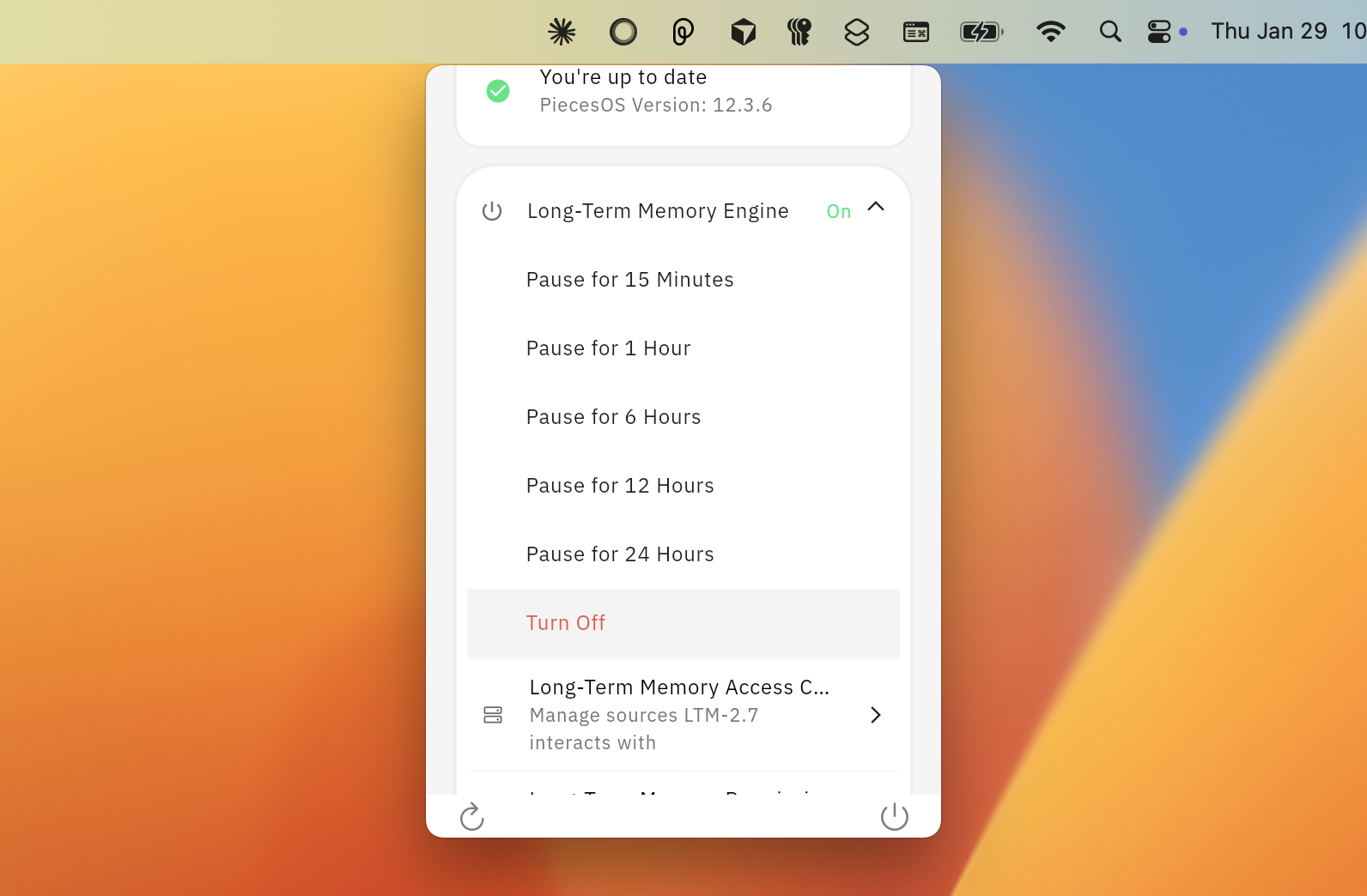
LTM toggle in the PiecesOS Quick Menu
Pausing or Disabling LTM
When LTM is active, the Quick Menu shows a green On button. Click it to pause or turn capture off. You can pause LTM-2.7 and LTM Audio for any length of time, from a few minutes to several days, instead of only fixed presets.
Pieces shows a clear Paused until label so you always know when capture resumes. Use this for a confidential call, a stretch of personal browsing, or a few days off.
| Option | Effect |
|---|---|
| Custom pause | Pause for a duration you choose (minutes, hours, or days); resumes automatically at the Paused until time |
| Turn Off | Fully disables LTM until you re-enable it manually |
You can pause from:
- The PiecesOS Quick Menu
- The user popover in Pieces Desktop (
User Profile→ hoverLTM-2.7) - Settings →
Long-Term Memoryin Pieces Desktop
For a full breakdown of every toggle and option in that settings panel, see LTM Settings.
When Capture Stops Automatically
Capture slows down when you step away:
- When your screen is locked, Pieces stops capturing entirely.
- When you go idle, Pieces captures less often instead of sampling at full rate, so an unattended laptop isn't recording a screen nobody is looking at.
LTM Audio
LTM Audio extends capture to system audio and microphone input—meeting recordings, video calls, podcasts, or your own voice during a call.
Long-Term Memory Access Control
Access Control lets you decide exactly which applications LTM captures data from.
You'll see two views:
Enabled Sources
A live list of all apps currently feeding data into LTM (for example, Google Chrome, VS Code, Slack).

Enabled sources view showing apps currently monitored by LTM
Click any listed source to open a window where you can disable it for that app individually. Disabled sources stop contributing new events to LTM but previously captured context is retained.
Clearing Stored LTM Data
Long-Term Memory data is stored locally by PiecesOS. You can remove it with granular control over time period, capture method, and application source.
Open the panel from the Pieces Desktop App: click your User Profile in the top left, hover over Settings, and select Long-Term Memory. In the Stored Data section, click Clear Long-Term Memory Data....
Combining Filters
Combine the three filters for precise deletions:
| Goal | Time Periods | Modalities | App Sources |
|---|---|---|---|
| Clear all clipboard data from the last hour | Last hour |
Clipboard |
All Sources |
| Remove Slack vision captures from today | Today |
Vision |
Slack |
| Delete all audio from this week | This week |
Audio |
All Sources |
| Wipe everything from one app | All Time |
All Modalities |
(specific app) |