Configure Pieces CLI Settings | Pieces Docs
Configure Pieces CLI settings—cloud models for ask, config editor, and Pieces Cloud session management.
Configuring the Pieces CLI
Pick which cloud model powers ask, set the editor that opens your config file, and manage your Pieces Cloud session. For the full command list, see the commands reference.
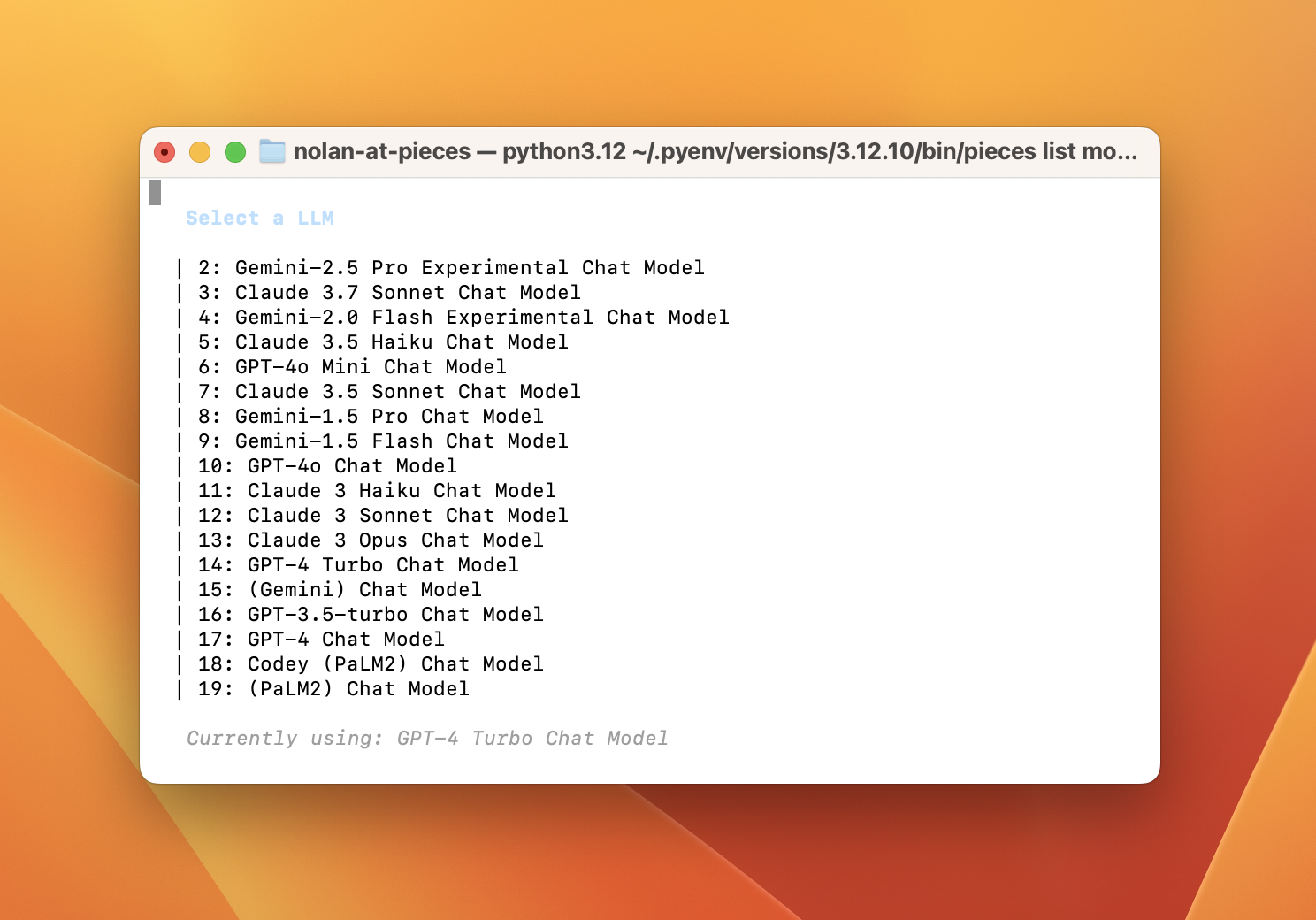
Switching between available models inside the Pieces CLI.
Available Models
The Pieces CLI uses the same models as the rest of the Pieces Suite. Choose from three model families—Claude, Gemini, and ChatGPT—each available in Fast, Balanced, and Extra Thinking modes.
For deeper guidance on picking the right model, see LLM Settings and Choose a Model.
Switch the Active Model
Use pieces list models to view every model configured for the ask command. The active model is highlighted, and you can pick a new one interactively from the list.
pieces list models
The next pieces ask "..." you run will use the newly selected model.
Set Your Code Editor
The CLI opens its config file in whichever editor you specify—vim, code, nano, or anything else on your PATH. Run pieces config to print the current configuration, or pieces config --editor <editor> to open the file for editing.
pieces config
pieces config --editor code
Edit values like timeout: 10, save the file, and changes take effect on your next CLI invocation.
Account & Sync
pieces login signs you in to your Pieces Cloud account, enabling sync and access to private materials in your Pieces Drive. pieces logout clears your session—useful when switching accounts or working on a shared machine.
pieces login
pieces logout
Next Steps
Hit a snag? Check the troubleshooting guide. For a complete reference of every CLI command and flag, see Commands.