Pieces for Linux installation guide banner

Install Pieces for Linux

Follow the steps below to download and install Pieces for Linux using the Command-Line Interface (CLI).

Requirements

There are several requirements that your Linux device must meet to download and install the Pieces Desktop App, PiecesOS, and ensure LTM-2.7 compatibility.

  • Snap Support: Ensure snapd is installed and enabled on your system. Most recent Ubuntu releases include snapd by default. If needed, install snapd by following the official snapd documentation.

  • Administrator Access: You’ll need sudo privileges to install snap packages.

  • Minimum OS Type: PiecesOS has been tested and developed primarily for Ubuntu 22+ or later-based distributions, so make sure your system is updated to at least Ubuntu 22+ or later.

  • Display server (X11 or Wayland): Pieces is primarily supported on Ubuntu using X11. Wayland support requires manual steps—run pieces-os.doctor after install and follow its output. Other configurations and distros may work but are generally unsupported. If Long-Term Memory or screen-related features misbehave—especially in some VMs—try logging in with an X11 session or see Linux troubleshooting.

Check your session with `echo $XDG_SESSION_TYPE` (`wayland` or `x11`). On **Wayland**, use `pieces-os.doctor` to wire up interfaces; labels in **Settings → System** vary by distro. *Ubuntu 22.04+ required.*

Run these commands in order to install and properly set up the Pieces Desktop App and it's core dependencies:

  1. sudo snap install pieces-os

  2. sudo snap connect pieces-os:process-control :process-control

  3. sudo snap install pieces-for-developers

Run pieces-os.doctor. The script outputs a command; copy and paste it into your terminal to connect all interfaces with the system.

Then, type pieces-for-developers to launch the application directly from your terminal.

Your Linux device must be running a supported distribution of Ubuntu—Ubuntu 22+.

Click here for documentation on determining your OS version.

Installation Method

Installation of PiecesOS and the Pieces Desktop App on supported Linux systems is done using the terminal (CLI).

Post-Installation Tips

Read the documentation below for tips and information to ensure you’re up and running with the latest versions of PiecesOS and the Pieces Desktop App, as well as steps to uninstall Pieces software from your Linux device.

Connect System Interfaces

After installing via snap, run pieces-os.doctor in your terminal. The script outputs a command you can copy and paste to connect all interfaces with the system. This step is required for full functionality, including features like LTM Audio.

Updating

The Pieces Desktop App automatically downloads and installs new updates.

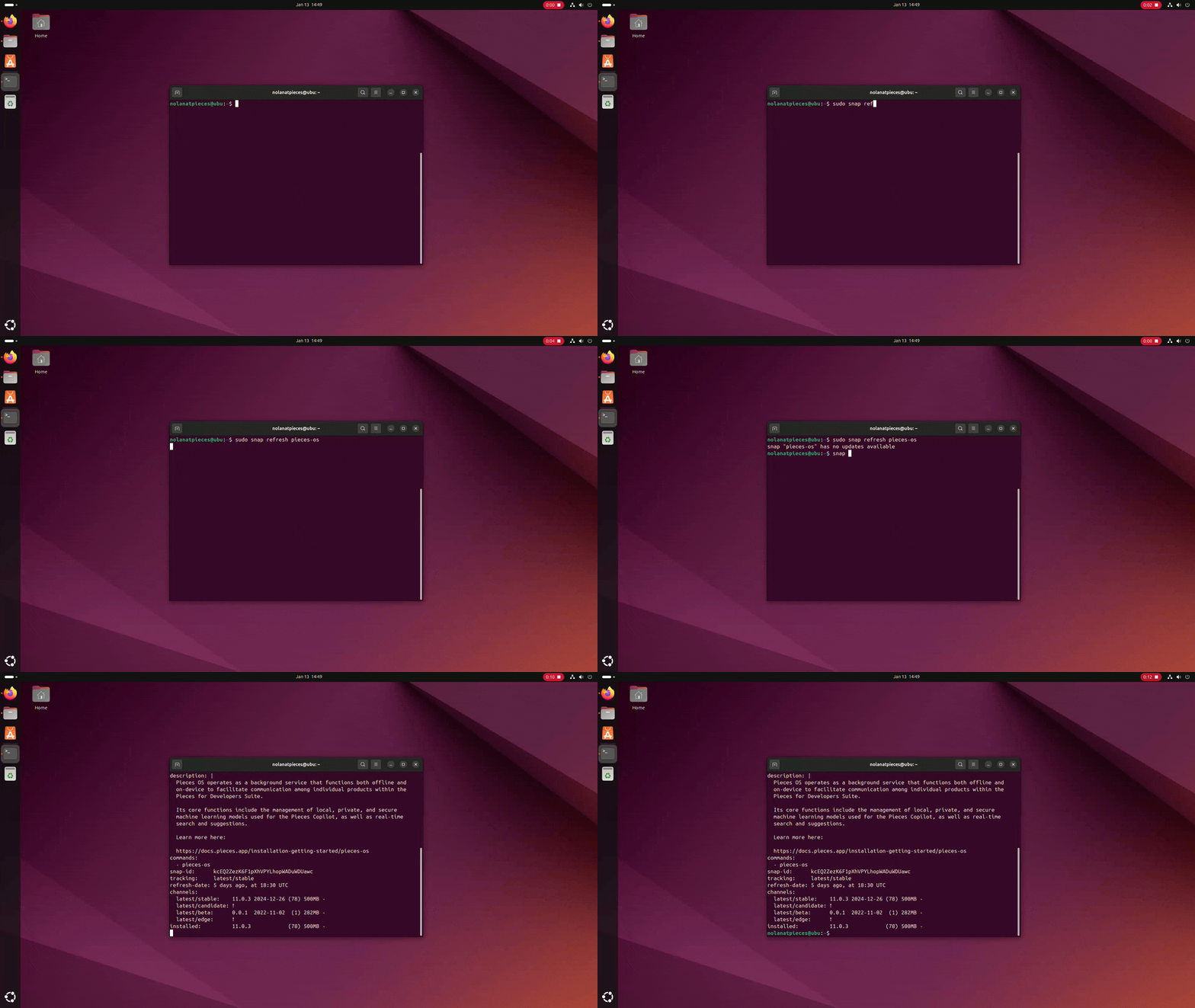
You can also manually check for updates to PiecesOS and the Pieces Desktop App by hovering over your username in the top left, then hovering over Update and selecting either Check for Desktop App Updates or Check for PiecesOS Updates.

Checking for PiecesOS updates in the Pieces Desktop App on Linux

Uninstalling

You can uninstall PiecesOS and the Pieces Desktop App using snap commands directly from your terminal.

When running both of these commands, you will be prompted to enter your device’s local account password due to the `sudo` command. `sudo apt remove pieces-for-developers` `sudo apt remove pieces-os` `sudo apt autoremove` Uninstalling Pieces from the Linux terminal

Additional Resources

Click here for additional documentation on troubleshooting or reach out to support.