Keyboard Shortcuts | Pieces Desktop App
Keyboard shortcuts enable you to access parts of Pieces without having to use the Power Menu or the settings page.
Overview
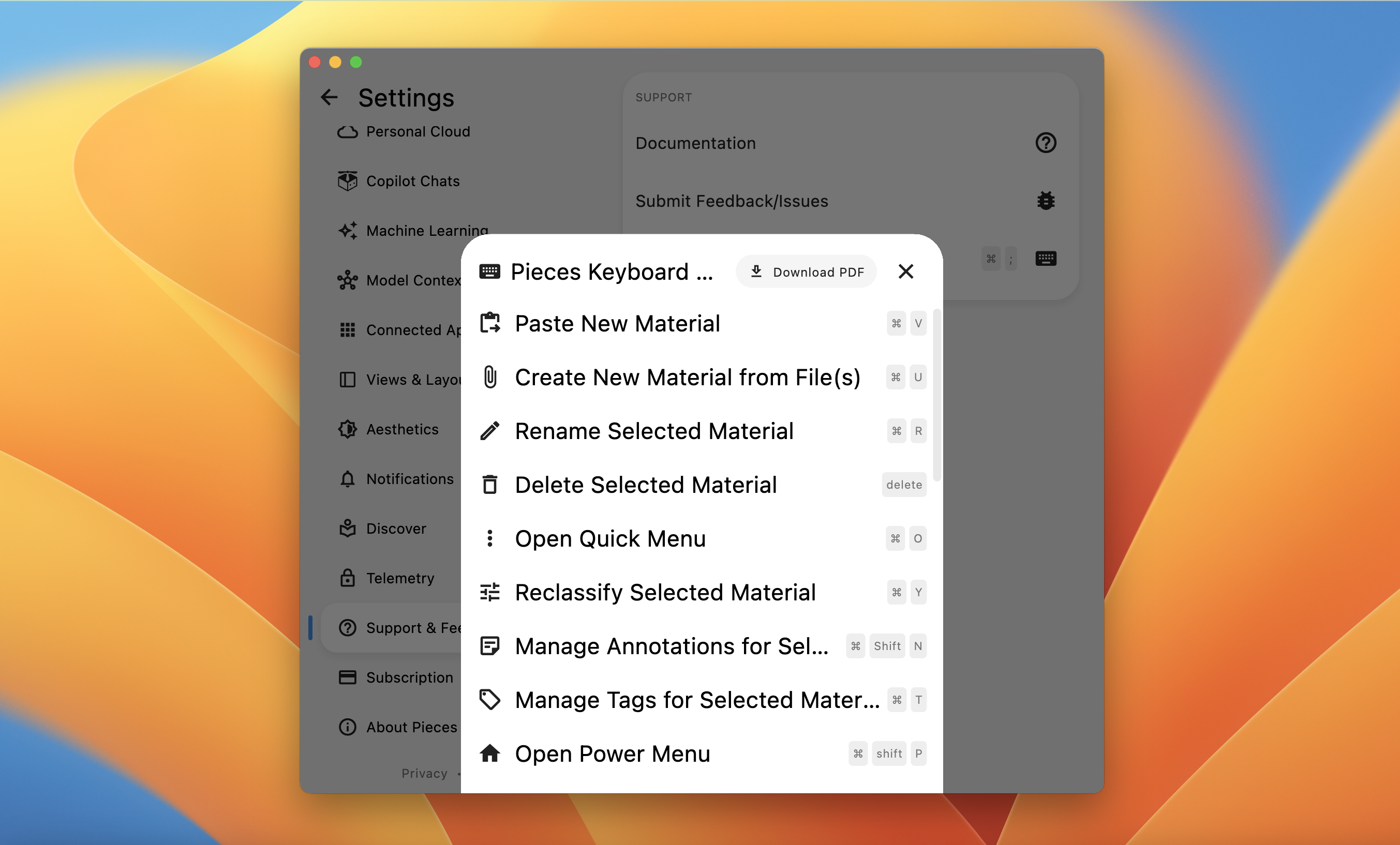
You can browse the list of keyboard shortcuts below as a reference guide, or you can open the Keyboard Shortcuts modal by navigating to Settings, and scrolling to Support or use ⌘+; (macOS) or ctrl+; (Windows/Linux).
Use a Piece
These shortcuts let you quickly interact with saved material in your workspace, making it easy to download, duplicate, or copy it with context.
| Command | Windows/Linux | macOS |
|---|---|---|
| Download a Piece | shift+ctrl+d |
shift+⌘+d |
| Duplicate a Piece | ctrl+d |
⌘+d |
| Copy with Context | ctrl+alt+c |
⌘+option+c |
Add a Piece
Use these shortcuts to seamlessly add new materials into Pieces—whether you're importing files, creating new snippets, or adding collections.
| Command | Windows/Linux | macOS |
|---|---|---|
| Add Code file to Pieces | ctrl+v |
⌘+v |
| Add Collections to Pieces | ctrl+shift+c |
⌘+shift+c |
| Add Code Snippet to Pieces from IDE | ctrl+c (in IDE), ctrl+v |
⌘+c,⌘+v |
| Create New Material from Scratch | ctrl+n |
⌘+n |
Manage a Saved Material
These keyboard shortcuts help you organize your content by renaming, editing, reclassifying, or even deleting a piece as needed.
| Command | Windows/Linux | macOS |
|---|---|---|
| Rename | ctrl+r |
⌘+r |
| Open quick menu | ctrl+o |
⌘+o |
| Reclassify | ctrl+y |
⌘+y |
| Delete | del |
del |
| Edit piece description | shift+ctrl+n/shift+ctrl+p |
shift+⌘+n/shift+⌘+p |
| Add related links | ctrl+k (if shown) |
⌘+k (if shown) |
| Add tags | ctrl+t (if shown) |
⌘+t (if shown) |
| Toggle information view | ctrl+i (if shown) |
⌘+i (if shown) |
| Highlight sensitive information | ctrl+! (if shown) |
⌘+! (if shown) |
| Open action menu | ctrl+enter |
⌘+enter |
Editing a Piece
Quickly focus on the editor, save your changes, or exit editing mode with these shortcuts, so you stay in control of your work.
| Command | Windows/Linux | macOS |
|---|---|---|
| Edit Mode | ctrl+e |
⌘+e |
| Escape Editing | esc |
esc |
| Save Edits | ctrl+s |
⌘+s |
Share with People / Support
Access options for generating shareable links or reaching out for support directly within the app using these commands.
| Command | Windows/Linux | macOS |
|---|---|---|
| Generate Shareable Link | ctrl+l |
⌘+l |
| Submit Feedback/Issues | shift+? |
shift+? |
Navigating Pieces
These shortcuts make it simple to jump between different views and features, keeping your workflow smooth and efficient.
| Command | Windows/Linux | macOS |
|---|---|---|
| Focus search | ctrl+f or / |
⌘+f or / |
| Jump to first/last piece | ctrl+→/ctrl+← |
⌘+→/⌘+← |
| Toggle between image and code view | t |
t |
| View next or previous piece | → or ← |
→ or ← |
Zoom & Updates
Adjust the UI scale and check for updates quickly with these handy shortcuts, ensuring a comfortable and current user experience.
| Command | Windows/Linux | macOS |
|---|---|---|
| Zoom in | ctrl++ |
⌘++ |
| Zoom out | ctrl+- |
⌘+- |
| Check for desktop app updates | shift+u |
shift+⌘+u |
| Release notes | shift+w |
shift+⌘+w |
| View keyboard shortcuts | ctrl+; |
⌘+; |
Configuring Pieces
Use these shortcuts to open settings and toggle themes, allowing you to personalize your Pieces environment with ease.
| Command | Windows/Linux | macOS |
|---|---|---|
| Open Settings | ctrl+, |
⌘+, |
| Change Theme | ctrl+t |
⌘+t |